Deployment Rollback: Kubernetes Strategies, Tools & Best Practices



Many problems in life can’t be fixed by instantly undoing mistakes. There is no “control-Z” function for easily reverting a career move you regret, for example, or unpurchasing a product you wish you hadn’t bought. But in Kubernetes, there is a way to undo actions quickly, at least when you make mistakes in configuring workloads. It’s called a Deployment rollback, and while it’s more complicated than simply hitting the control-Z keys, it is a fast and effective way to revert workloads to a stable configuration.
Below, we explain how Deployment rollbacks work in Kubernetes, when to use them, and best practices for managing rollback events effectively.
What is a Deployment rollback?
In Kubernetes, a Deployment rollback is an event that reverts a Deployment - a resource type that runs one or more Pods - to an earlier configuration. Thus, a Deployment rollback allows admins to modify the configuration of a Deployment in a way that switches back to an earlier version of the Deployment configuration.
Deployment rollbacks vs. application rollbacks
Importantly, Deployment rollbacks don’t change application code; they only change the Kubernetes-specific configuration settings that are defined in the Deployment’s manifest. You could, for example, roll back to a different networking configuration or replica setting.
If you want to revert to an earlier version of an application itself, however, you would need to change the container or containers included in your Deployment, which you could do using a Deployment rollback, but only if your Deployment’s revision history includes a configuration that specifies a different container image or version. Otherwise, you’d need to modify your Deployment (without doing a rollback) so that it points to the right version of the container you want to run.
Deployment rollback vs. Rolling Update
Deployment rollbacks should also not be confused with rolling updates.
Rolling updates (which are an example of a type of Deployment strategy) are a way of gradually replacing older versions of an application with newer instances. Admins typically use them to avoid downtime during an application update process. But Rolling Updates have nothing to do with reverting to an earlier version of a Deployment’s configuration, which is what Deployment rollbacks do.
| Process | Description | When to use |
|---|---|---|
| Deployment rollback | Reverts a Deployment to an earlier version. | When reverting to a previous Deployment configuration to fix an issue with the current one. |
| Rolling update | A type of Deployment strategy in Kubernetes that gradually replaces Pods, as a way of minimizing downtime risks. | When rolling out a new version of an application that can’t tolerate downtime. |
How Deployment rollbacks work in Kubernetes
The Deployment rollback process is relatively straightforward. It’s based on the following capabilities:
- Kubernetes automatically maintains a revision history for Deployment manifests.
- When admins want to revert to an earlier version of a Deployment’s manifests, they use kubectl to tell Kubernetes to switch to that version (we cover the exact process and commands for requesting a Rollback below).
This is how Deployment rollbacks work at a high level. But there’s a little more technical nuance to unpack, so let’s take a look at it in the following subsections.
ReplicaSets and how Kubernetes tracks Deployment versions
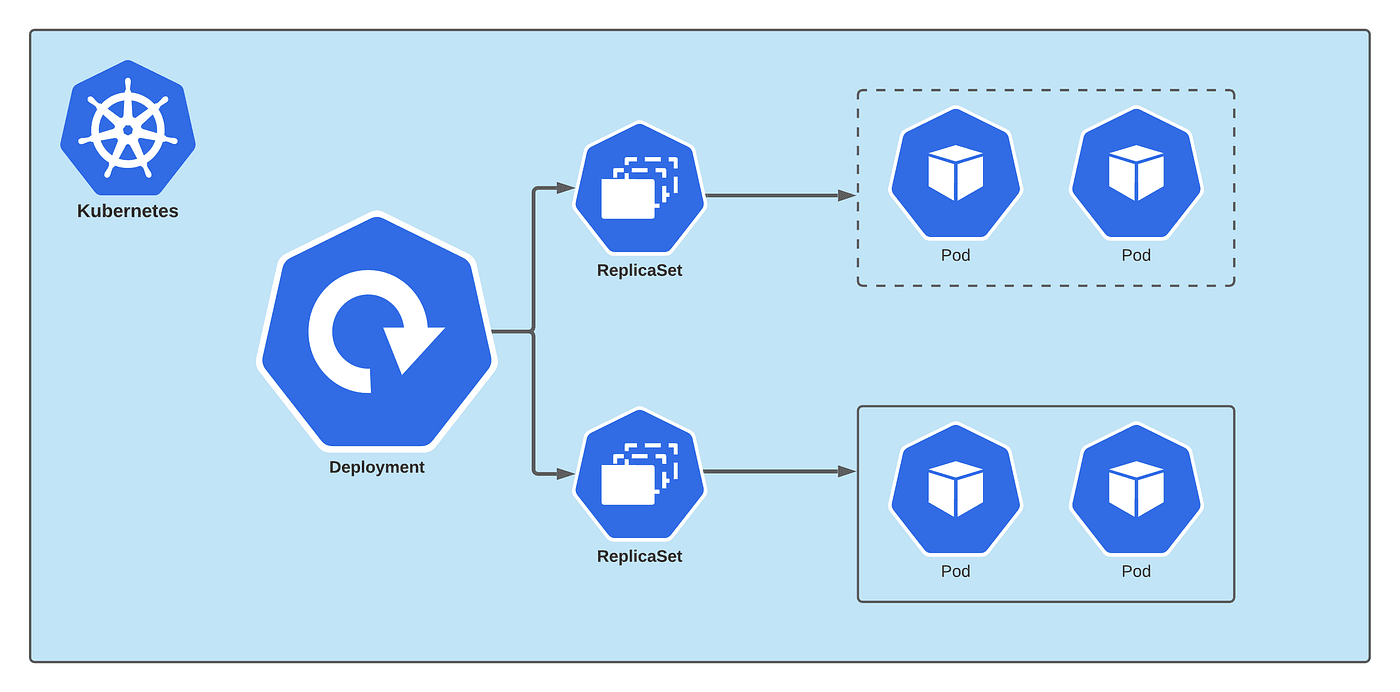
Under the hood, Kubernetes uses ReplicaSets to track Deployment versions. Each time a Deployment changes, Kubernetes creates a new ReplicaSet for it, while also retaining ReplicaSet configurations for previous Deployment versions.
Then, when admins request a rollback, the Deployment controller deploys the appropriate ReplicaSet.
Revision history and Deployment change tracking
To track revision histories, Kubernetes assigns a revision number whenever Deployments are updated. Revision numbers are stored in the deployment.kubernetes.io/revision annotation.
There is a maximum number of revision histories that Kubernetes will maintain before discarding older ones. It’s typically ten by default, but you can specify more or fewer using the revisionHistoryLimit option within a Deployment.
Common causes that trigger a Deployment rollback
A number of scenarios might cause admins to decide to perform a Deployment rollback:
- A typo or other accidental configuration error causes a Deployment to be buggy. Admins roll back to a version of the Deployment that they know to be stable.
- A Deployment fails health checks following an update, and admins choose to roll back to an older version so that the application begins operating normally again.
- An updated Deployment is consuming more resources than expected, and the team rolls it back to reduce resource utilization.
- A Deployment update runs a newer version of an application that contains bugs. Rolling it back restores a stable version of the application.
Importantly, rollbacks in Kubernetes don’t happen automatically. In other words, Kubernetes will not roll back Deployments for you if it detects some kind of problem. It’s up to you, the Kubernetes admin, to initiate a Deployment rollback manually - unless you automate the process using external CI/CD tools, which is a practice we cover later in this article.
| Cause for Deployment rollback | Description |
|---|---|
| Deployment misconfiguration | The rollback restores a Deployment that doesn’t contain configuration errors. |
| Failed Deployment | The rollback reverts to a Deployment that is stable as a way of fixing a failed Deployment. |
| Excess Deployment resource consumption | Rolling back reverts to a Deployment that consumes resources more efficiently. |
| Buggy application code | The rollback switches to a Deployment version that uses different container images, which don’t include the buggy code. |
How to perform a Deployment rollback using kubectl
As we said, rolling back a Deployment isn’t quite as simple as hitting “control-Z.” But it’s easy enough to perform a rollback using kubectl, the Kubernetes CLI admin tool. Here’s the process in a nutshell.
1. Check Deployment rollback (Rollout) history
Before initiating a rollback, you may want to review the Deployment’s rollback history. You can do this using the command:
You can get detailed information about a specific revision using:
This data is helpful for knowing which version of a Deployment you’re currently running and tracking what changed between versions.
2. Roll back to the most recent version
If you want to revert to the most recent version of your Deployment prior to the current one, run this command:
If desired, you can roll back multiple Deployments at once by listing more than one Deployment name in this command. You can also use the --all flag to revert all Deployments within a namespace.
Notice that the syntax for performing a rollback includes the term rollout instead of rollback. kubectl rollback is not a supported command; kubectl rollout is the correct usage. This terminology makes sense when you consider that the rollback process can “roll out” any specified version of a Deployment; it’s not strictly for “rolling back” to an historical version.
3. Roll back to a specific version
You can also revert to a specific version instead of the most recent one. To do that, simply specify the version number in the rollback command:
4. Monitor Deployment rollback status
Typically, Kubernetes provides real-time feedback about rollback status and will respond with a message along the lines of “[Deployment-name] successfully rolled out” when the rollback succeeds. But you can also check on a Deployment’s current status using:
Problems resulting from a rollback event (such as a rollback halted because it exceeded the maximum allowed time for it to complete) will be noted here. The commands kubectl get pods and kubectl get events may also be useful for tracking the status of Pods that change during a rollback event.
Detecting failed Deployments before initiating a rollback
Of course, rather than waiting until a rollback has failed to determine there’s a problem, it’s preferable to know ahead of time that a rollback will succeed.
Kubernetes offers no built-in way of pre-validating or simulating a rollback event. But you can manually check a Deployment’s current status via the command:
You can also look at the Deployment’s revision history using:
The history data can be combined with data from an observability tool to confirm which Deployments were known to be stable in the past. That way, you can tell Kubernetes to roll the Deployment back to a revision that you know will work (or at least, that worked in the past; it’s important to bear in mind that changes elsewhere in your cluster, such as modifications to resource allocations, could cause problems even for a Deployment version that was stable historically).
Automating Deployment rollbacks in CI/CD pipelines
As we mentioned, Kubernetes offers no built-in way to automate rollbacks. However, you can use external tools to initiate rollbacks automatically as part of the CI/CD process. This is particularly helpful as a way of automatically rolling back a bad application release after you detect a bug within the CI/CD pipeline.
To enable automated Deployment rollbacks in CI/CD pipelines, you need:
- An integration between your CI/CD tooling and your Kubernetes cluster that makes it possible for the CI/CD tools to execute kubectl commands.
- Triggers or conditions that execute rollbacks in response to events in the CI/CD pipeline (such as failed software tests).
The exact method for setting up automated rollbacks varies depending on which CI/CD software you use, but most of the major CI/CD or release automation platforms include Kubernetes integrations that can support this scenario.
Challenges and risks of Deployment rollback in production
The major risk of using Deployment rollbacks is that they could fail for various reasons, such as:
- Rolling back to a Deployment version that contains bugs.
- Rolling back to a Deployment version that is no longer stable because of changes to your cluster settings or application code.
- Accidentally rolling back to an unstable version of the Deployment because admins specify the wrong version number (or don’t specify a number at all, causing Kubernetes to default to a version that is not stable).
- The rollback process taking too long, causing application downtime.
For these reasons, it’s important to use rollbacks strategically. Instead of rolling back at the first sign of a potential failure, make sure you have a solid reason for the rollback.
Best practices for reliable Deployment rollbacks
To help ensure a smooth and reliable rollback process, consider the following best practices:
- Inspect revision histories first: Before initiating a rollback, inspect the Deployment revision history to take stock of which revisions are available and how they have changed over time.
- Specify a revision number: As a best practice, always specify a revision number when rolling back. This avoids the surprises that can arise when you roll back to the most recent version, and it turns out to be different from what you expected.
- Confirm Deployment status: Check the status of your Deployment following a rollback to confirm that it has succeeded.
Avoid application downtime: Specify maxUnavailable and maxSurge parameters within your Deployment to tell Kubernetes not to reduce Pod count to zero (which would cause application downtime) during a rollback.
| Best practice | How it helps |
|---|---|
| Inspect revision histories | Checking Deployment revision histories before initiating a rollback provides visibility into which Deployment versions are available. |
| Specify revision number | Specifying a revision number gives admins control over exactly which Deployment version they revert to. |
| Confirm Deployment status | Validating Deployment status following the rollback confirms that it succeeded. |
| Avoid application downtime using Deployment parameters | Specifying maxUnavailable and maxSurge parameters within your Deployment helps ensure that adequate Pods keep running during the rollback to maintain application availability. |
Observability and monitoring for successful Deployment rollbacks
We explained how to use kubectl to check a Deployment’s status following a rollback. But to get true visibility into rollback status and health, it’s also a best practice to use external monitoring and observability tools.
These provide detailed context (such as whether sufficient node resources are available to support redundant Pods during a rollback) that helps you determine whether to perform a rollback. They also allow you to drill down into rollback errors, like failure to reschedule Pods during a rollback.
Faster Deployment rollback troubleshooting with groundcover
When it comes to gaining deep visibility into rollback status and troubleshooting failures quickly, groundcover is on your side. By continuously tracking the status of all resources within your cluster, groundcover provides the critical context necessary to predict rollback success, correlate failure conditions with root causes, and resolve issues fast.

This means you can roll back strategically and avoid initiating Deployment changes that are likely to fail. It also translates to a lower risk of application downtime or performance issues due to failed rollbacks.
Rolling back while moving forward
Sometimes, the best way to mitigate a performance issue in Kubernetes is to roll back a Deployment - but if something goes wrong during the Deployment rollback process, it can have the effect of making the performance issue even worse. Hence the importance of knowing when (and when not) to use rollbacks, and how to monitor and troubleshoot them effectively.
FAQs
In Kubernetes, a Deployment rollback refers to reverting a Deployment to an earlier version. In contrast, “roll forward” usually refers to updating an application (usually by modifying its container image using a command such as kubectl set image), without necessarily changing a Deployment.
Put another way, a rollback modifies the configuration of a Deployment, whereas a roll forward modifies an application version. These are distinct processes, and they rely on separate tooling.
The best way to minimize the risk of downtime during a rollback is to specify a maxUnavailable value, which limits how many Pods can be disabled simultaneously. You can also define maxSurge, which allows Kubernetes to execute additional Pods as a way of maintaining application availability.
groundcover provides critical insight into Deployment status by comprehensively tracking the status of all resources within Kubernetes. Using this visibility, engineers can quickly identify issues like Deployments that include Pods that have failed to schedule or that are consuming an excess amount of resources - conditions that could potentially be resolved by rolling back the Deployment to a known-good version.