Cron Job Not Triggering: How to Debug and Fix It



When cron jobs trigger properly, they’re a great feature. They save admins lots of time by making it possible to automate routine tasks.
But when something goes wrong and a cron job doesn’t trigger as expected, cron can become a major source of frustration. This is particularly true because cron jobs fail “silently,” meaning cron itself doesn’t automatically generate any notifications about a failed or misconfigured trigger.
Hence why it’s so important for admins to take extra steps to ensure they know when and why cron jobs are not working as expected. Read on for guidance as we break down what it means when a cron job is not triggering (in both Linux and Kubernetes), how to debug the issue, and best practices for ensuring that cron jobs work properly.
What does it mean when a cron job is not triggering?
A cron job not triggering means that a task that was configured to run in cron did not start.
To understand fully what that means, let’s step back a bit and talk about cron. Cron is a feature (which can be found in Linux-based operating systems, as well as in Kubernetes cron) for scheduling tasks. Admins use it to automate workflows like running backup routines or purging obsolete files.
To use cron, admins define the conditions when each job (i.e., each task that they want to perform automatically) should run. If a cron job doesn’t trigger, it means that the conditions that were supposed to prompt the execution of the job were never met. We discuss specific reasons why cron jobs don’t trigger later in this article.
Note that a cron job failing to trigger is different from having a job start but fail to execute properly. The latter issue can occur due to problems like bugs in scripts that admins set up in cron, or a lack of sufficient CPU or memory to execute a cron job. Those problems should be investigated, too, but they’re a separate type of issue because they don’t involve a cron job failing to trigger; they happen when a job triggers but doesn’t run successfully to completion. In this article, we’re focusing on cron jobs that don’t trigger at all.
How cron jobs work and why they behave differently than manual execution
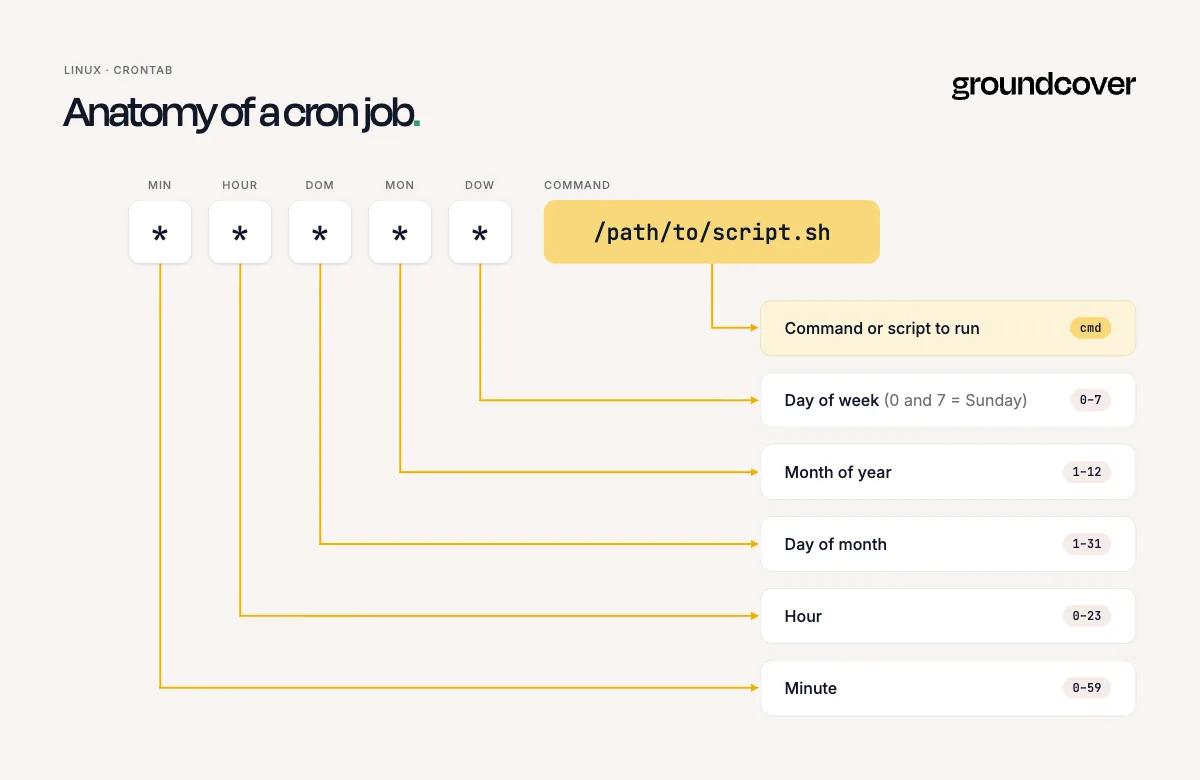
As we mentioned, admins can configure cron jobs by defining when they should run. In Linux, they do this by editing a special file called the crontab. On Kubernetes, they define cron jobs using YAML.
The cron schedule is set by filling in columns that represent the following values:
- Minute (0–59): The minute when the job runs.
- Hour (0–23): The hour when the job runs.
- Day of month (1–31): The day of the month when the job runs.
- Month (1–12 or Jan–Dec): The month when the job runs.
- Day of week (0–7 or Sun–Sat): The day of the week when the job runs (0 and 7 both represent Sunday).
For example, the following schedule would define a cron job to run every Monday and Wednesday at 5 p.m.:
The cron schedule is followed (on the same line) by the command that cron should execute. For instance, the full entry for the Monday and Wednesday cron job we just mentioned would look like this:
Once added to the Linux crontab or deployed as a Kubernetes cron job, a cron job should execute whenever the system clock reaches the scheduled time. But this doesn’t always happen, due to issues like those we’ll discuss in a moment.
This is what can make cron jobs behave differently from manually executed tasks. When you run a script or call a command on the command line, you’ll know whether it executes or not because you’ll see an error message (or, potentially, a hung or frozen prompt) if it doesn’t. But with cron jobs, there’s no built-in feedback, which means jobs can fail to trigger without admins’ knowledge.
Common reasons why a cron job doesn’t trigger
There are many reasons why a scheduled cron job may fail to run. Common issues include:
- Incorrect cron schedule syntax: Invalid field values, unsupported special characters, or formatting errors prevent cron from parsing the entry, so the job is never scheduled.
- Cron service is not running: If the cron daemon (crond or cron) is stopped, disabled, or repeatedly crashing, scheduled jobs will not be triggered.
- Job is installed in the wrong crontab: Adding the job to the wrong user's crontab or the wrong system cron file means the intended scheduler never sees the entry.
- Invalid crontab file format: Missing required fields, malformed environment variable declarations, or syntax errors elsewhere in the crontab can prevent cron from loading the file.
- Incorrect day or time configuration: Using the wrong day-of-week values, month values, or time settings can result in a schedule that never matches the intended execution time.
- Time zone mismatch: If the system or cron daemon uses a different time zone than expected, the job may appear not to run because it is scheduled for a different local time.
- Cron configuration changes not applied: In environments where cron jobs are generated from configuration management tools or containers, the updated schedule may not have been deployed or reloaded.
- User account is unavailable: If the user specified to run the job has been deleted, disabled, or cannot be resolved, cron cannot schedule the job under that account.
- Cron access restrictions: Files such as cron.allow and cron.deny can prevent specific users from installing or running cron jobs.
- Missing newline at the end of the crontab: Some cron implementations ignore the final entry if the crontab file does not end with a newline character.
- Disabled or missing scheduled task in containerized environments: In containers, cron may not be installed (or it could be installed but not configured to run as a background service), causing scheduled jobs never to trigger.
- System downtime during the scheduled time: Traditional cron does not automatically rerun jobs that were scheduled while the system (or container) was powered off or unavailable, so those executions are skipped entirely.
How to debug a cron job that is not triggering
If a cron job doesn’t run when expected, the following troubleshooting steps can help provide insight into the root cause.
#1. Redirect output to a log file to capture silent errors
Start by redirecting both standard output and standard error from the cron job to a dedicated log file. This makes it possible to distinguish between a job that never triggered and one that started but encountered an error before producing visible results.
To do this, append a command like >> /var/log/myjob.log 2>&1 to the cron command. This redirects the output to a file named /var/log/myjob.log. After the scheduled execution time, review the log for timestamps, error messages, or confirmation that the script actually started. If the log file contains no data, it almost certainly means that the cron job didn’t trigger at all.
#2. Use absolute paths for all binaries and scripts
If the previous step revealed that your cron job is not triggering, you can try setting absolute paths to make it run.
This may help because cron runs with a minimal environment and does not use the same PATH settings as an interactive shell. For that reason, commands that work when run manually may never execute correctly if cron cannot locate the required binary or script because they are defined in a normal user’s PATH but not in the cron PATH. To remediate this issue, replace relative paths and command names with their full filesystem paths, such as /usr/bin/python3, /usr/bin/bash or /usr/local/bin/backup.sh.
#3. Grant execution permissions to the script
You should also verify that the target script has executable permissions before expecting cron to run it. Check the current permissions with ls -l and, if necessary, use chmod +x script.sh to make the file executable. Also confirm that the script begins with the appropriate shebang line, such as #!/bin/bash or #!/usr/bin/env python3, so the operating system knows which interpreter to use. Without the correct permissions or interpreter declaration, the scheduled command may fail immediately after cron invokes it.
#4. Insert a trailing newline at the end of the crontab file
Some cron implementations require the crontab file to end with a newline character. If the final line is not terminated correctly, cron may ignore the last job entirely, making it appear as though the schedule is never triggered. After editing the crontab, save the file normally and verify that the final entry is followed by a blank line or newline character. Using the crontab -e command instead of editing cron files directly helps avoid formatting issues.
#5. Check the cron service status on the host
Confirm that the cron daemon is running before troubleshooting individual jobs. If the service is stopped, disabled, or repeatedly failing to start, none of the configured schedules will execute. Use your operating system's service management tools, such as systemctl status cron, systemctl status crond or service cron status, depending on the distribution. If the service is inactive, start it, enable it to launch automatically after reboot, and review system logs for any startup errors.
#6. Escape percent signs in date commands
Cron treats the percent (%) character as a special delimiter rather than as a literal character. As a result, commands that use utilities such as date +"%Y-%m-%d" can be interpreted incorrectly, causing unexpected behavior or preventing the command from executing as intended. Escape each percent sign with a backslash, such as \%Y-\%m-\%d, or place the command inside a shell script where percent signs are handled normally. This ensures date formatting expressions are passed correctly to the command being executed.
Cron job not triggering in Kubernetes: What changes
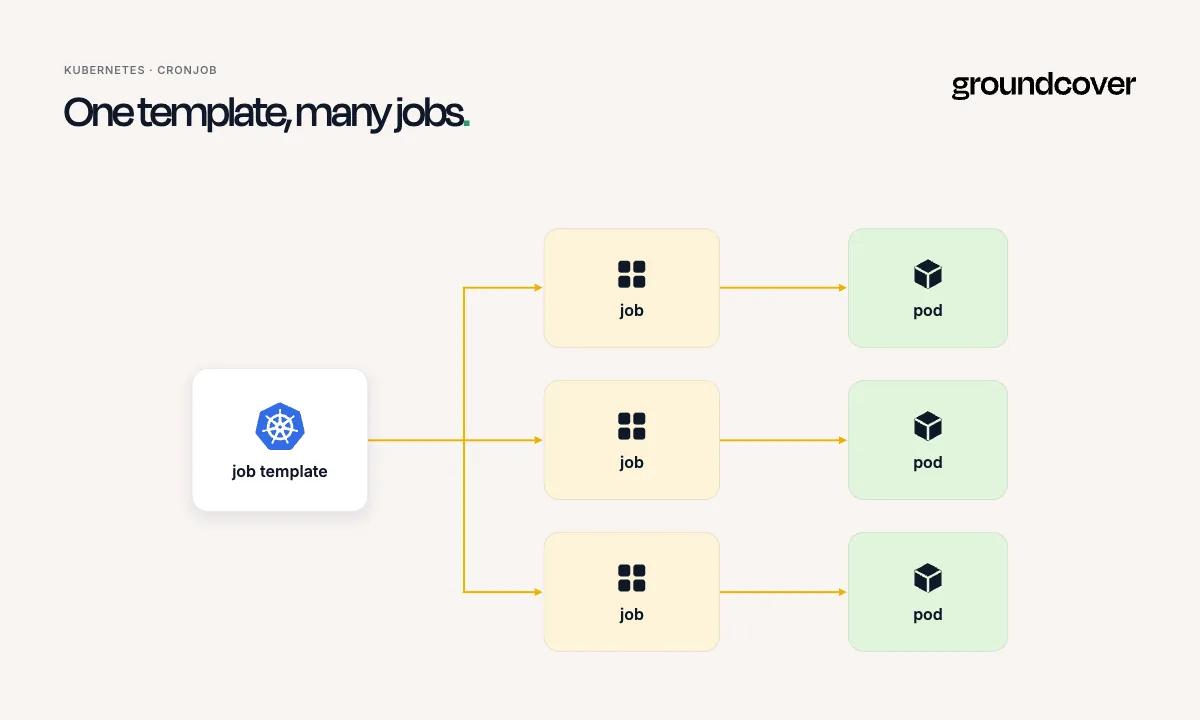
As we noted above, cron jobs work a bit differently in Kubernetes than in Linux. The underlying concepts are the same, but in Kubernetes, admins define cron jobs using YAML code rather than writing lines in a crontab file. In addition, in Kubernetes, the control plane (as opposed to a cron daemon) is responsible for executing CronJobs. (In a Kubernetes context, cron tasks are usually referred to as CronJobs, whereas on Linux the common stylization is to call them cron jobs.)
Due to these differences, the troubleshooting workflow for cron jobs that fail to trigger looks somewhat different on Kubernetes compared to Linux. On a Linux host, troubleshooting typically focuses on the local cron daemon, crontab syntax, file permissions, environment variables, and the availability of the target script or command. In Kubernetes, however, since the control plane handles the execution of CronJobs, problems such as an unavailable control plane, an incorrectly configured CronJob manifest, a suspended CronJob, or controller failures can prevent a scheduled job from being created in the first place.
The troubleshooting workflow also differs because Kubernetes introduces additional layers that do not exist on a traditional Linux system. Rather than inspecting crontab files and cron logs, administrators should verify that the CronJob resource exists, confirm that the schedule expression is valid, check whether spec.suspend is set to false, and review the CronJob, Job, and Pod events using kubectl describe and kubectl get events. It is also important to determine whether the CronJob controller successfully created a Job and whether that Job created a Pod. Checking the CronJob syntax is critical as well (for more on that, see the section below on syntax errors that can prevent CronJobs from triggering).
If no Job object is created, the issue usually lies with the CronJob configuration or the Kubernetes control plane. If a Job exists but no Pod is created, the problem is more likely related to scheduling constraints, resource availability, or cluster configuration rather than the scheduling mechanism itself.
How to verify a CronJob is running in Kubernetes
To tell whether a CronJob has been successfully triggered and is running in Kubernetes, first list the CronJob resources with kubectl get cronjobs and confirm that the schedule, SUSPEND status, and LAST SCHEDULE timestamp match expectations.
From there, check whether the CronJob is creating Job resources by running kubectl get jobs, then verify that each Job creates a Pod using kubectl get pods.
If a Kubernetes CronJob is not running as expected, use the troubleshooting guidance from the previous section to diagnose and resolve the issue.
CronJob syntax errors that prevent triggering
While CronJobs in Kubernetes may fail to trigger due to issues like a control plane disconnect, the root cause sometimes simply boils down to syntax errors, such as the following:
- Invalid cron expression format: Kubernetes CronJobs require a valid five-field cron expression (minute hour day-of-month month day-of-week). Missing fields, extra fields, or malformed expressions prevent the CronJob from being accepted or scheduled.
- Values outside the allowed range: Specifying invalid values, such as 70 for minutes or 25 for hours, causes the schedule to fail validation.
- Unsupported special characters: Not all cron implementations support the same syntax. Using unsupported modifiers or expressions can result in an invalid schedule or unexpected behavior.
- Incorrect use of lists, ranges, or step values: Mistakes such as malformed ranges (10-5), invalid lists (1,,3), or incorrect step syntax (*/) prevent the schedule from being parsed correctly.
- Invalid day or month names: Misspelled or unsupported abbreviations for months or days of the week can make the schedule invalid.
- Quoting or YAML formatting errors: Incorrect indentation, missing quotation marks around the schedule when needed, or other YAML syntax errors can prevent the CronJob resource from being created or updated.
- Missing or misplaced schedule field: Omitting the required spec.schedule field or placing it in the wrong location within the manifest prevents Kubernetes from recognizing the CronJob schedule.
- Invisible formatting characters: Copying a schedule from another source may introduce hidden characters, tabs, or non-standard whitespace that cause parsing or validation failures.
Best practices for reliable cron job scheduling
To minimize the risk of issues that could prevent cron jobs (and Kubernetes CronJobs) from triggering successfully, consider adopting the following best practices when working with cron:
- Validate schedules before deployment: Test cron expressions for correctness before adding them to a Linux crontab or applying a Kubernetes CronJob manifest. Catching syntax errors early prevents schedules that never trigger.
- Make scheduled tasks self-contained: Use absolute paths, explicitly define required environment variables, and package all dependencies with the job. On Linux, this minimizes differences from an interactive shell, while in Kubernetes it ensures containers behave consistently regardless of where they are scheduled.
- Implement comprehensive logging and monitoring: Capture standard output and error logs, monitor execution history, and configure alerts for missed or failed executions. In Kubernetes, monitor CronJob, Job and Pod events in addition to application logs to distinguish scheduling issues from runtime failures.
- Configure safeguards against missed or overlapping executions: Use locking mechanisms or idempotent scripts on Linux to prevent concurrent runs. In Kubernetes, configure concurrencyPolicy, startingDeadlineSeconds, and successfulJobsHistoryLimit or failedJobsHistoryLimit to control overlapping jobs, recover from missed schedules, and retain enough history for troubleshooting.
- Regularly verify scheduler health: Confirm that the Linux cron daemon is running and that crontab entries are loaded correctly. In Kubernetes, verify that CronJob resources are not suspended, the control plane and CronJob controller are healthy, and Jobs are being created according to the expected schedule.
Real-time cron job visibility without the guesswork with groundcover
Given the many reasons why a cron job may fail to trigger, getting to the root cause can be tricky – unless you have a tool like groundcover on your side.
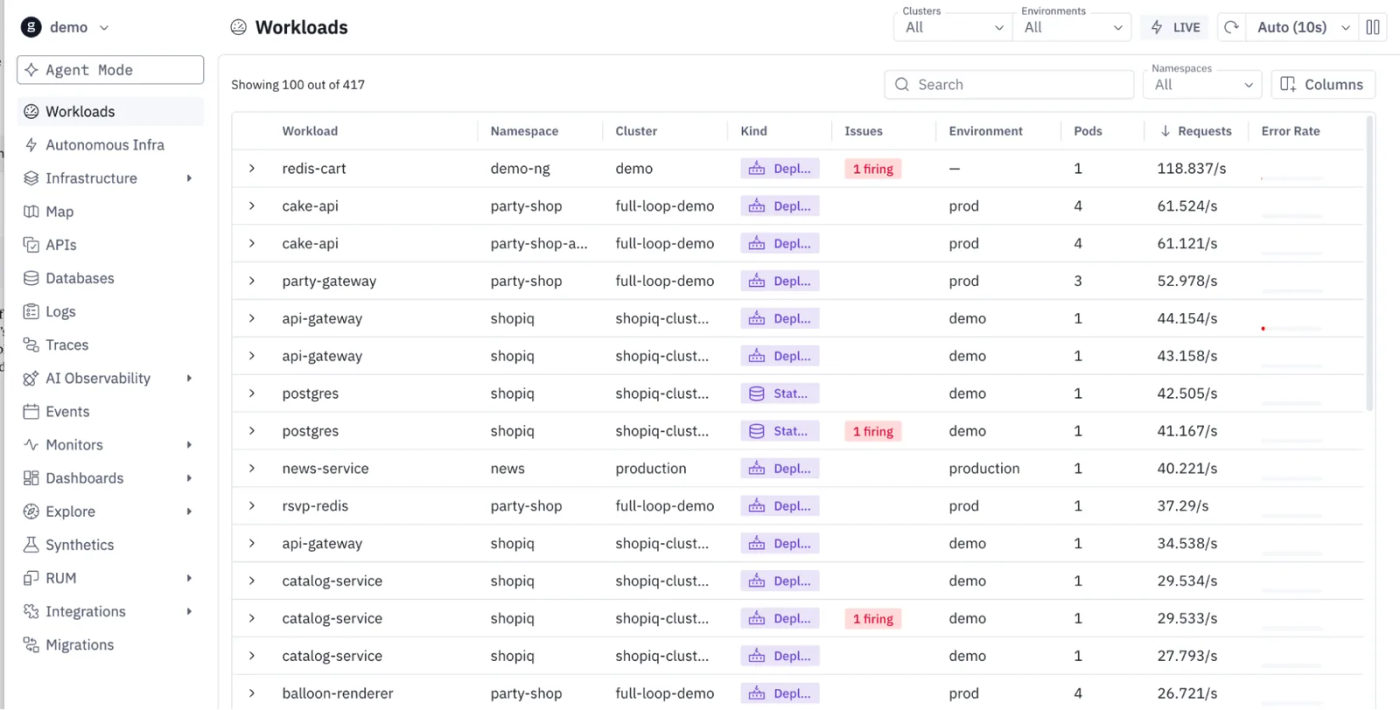
Groundcover continuously monitors every component and layer of your environment – including host servers, Kubernetes Pods, containers, cluster control planes and more – to provide comprehensive insight into the health and status of your resources. This context makes it possible to detect issues like errors, crash states, resource exhaustion, and networking failures that could cause cron not to work as intended.
This means admins don’t have to guess why a cron job failed to run or work through tedious manual troubleshooting steps. They can turn to groundcover for instant insight into what’s going wrong with their servers or Kubernetes clusters.
Getting cron jobs to do their job
In a perfect world, cron jobs would always run when you expect them to run. But in the complicated worlds of Linux and Kubernetes, many hard-to-foresee factors can prevent successful cron execution. The key to getting ahead of these issues is to attain deep visibility into your environment so that you know when something’s off – which is where observability solutions like groundcover come in.
FAQs
Yes, a CronJob can show a valid schedule while failing to create or execute a job because of issues such as a suspended CronJob, controller failures, scheduling constraints or resource shortages.
A job that never triggered will have no corresponding execution records, Jobs, or Pods. In contrast, a job that triggered but failed will have execution history, logs, events, or exit codes indicating that it started before encountering an error.
Groundcover automatically correlates Kubernetes events, CronJobs, Jobs, Pods, logs, metrics, and traces into a unified view, enabling engineers to investigate failed scheduled workloads without manually switching between multiple tools.