
Elasticsearch Snapshots: Architecture, Recovery & Best Practices



Elasticsearch plays an important role in the ability of many organizations to track and search their data. If the Elasticsearch index becomes unavailable, businesses can instantly lose visibility into critical data assets. Hence the importance of being able to back up Elasticsearch.
Fortunately, the platform offers a handy feature - known as Elasticsearch snapshots - for creating backups. Snapshots are a way to create backups in real time, without having to pause Elasticsearch operations. That said, Elasticsearch snapshots don’t always work in the way they should. A variety of issues could cause snapshots to fail entirely, or to skip some data. Elasticsearch admins need to familiarize themselves with these risks and take steps to mitigate them.
Read on for guidance as we explain everything you need to know about Elasticsearch snapshots, including how they work, how to create them, common snapshot challenges, and how to monitor and troubleshoot Elasticsearch snapshots efficiently.
What are Elasticsearch snapshots?
Elasticsearch snapshots are a type of backup that creates an image of Elasticsearch data at a specific point in time. You can use snapshots to restore data in the event that your production Elasticsearch indexes become corrupt or unavailable.
Snapshots capture Elasticsearch index data, as well as data related to the cluster settings and state. It’s important to note, however, that they don’t back up actual data assets (meaning external data that is indexed and searchable by Elasticsearch, but is not actually stored within Elasticsearch). You’d need to use external backup tools to protect that data.
.jpg)
How Elasticsearch snapshots work internally
A key aspect of how Elasticsearch snapshots work is that they are a type of incremental backup. This means that every time you create a snapshot, it replicates only the data that has changed since your last snapshot. If you have no previous snapshots, Elasticsearch will create a full backup, but subsequent snapshots are designed to append data to previous ones rather than create complete backups every time.
Under the hood, Elasticsearch handles snapshots using this process:
- Elasticsearch maintains an internal metadata record of existing snapshots.
- When a new snapshot request is initiated, Elasticsearch references the metadata to determine which data has changed since the last snapshot.
- To create a new snapshot, Elasticsearch creates copies of Lucene indexes that have changed since the last snapshot. Lucene indexes are the building blocks that Elasticsearch uses to create its search indexes.
Deduplication and incremental storage in Elasticsearch snapshots
The ability to deduplicate data (in other words, to avoid copying the same data twice) and create snapshots incrementally is a key feature of Elasticsearch snapshots. It’s valuable for two main reasons:
- It can significantly reduce the time necessary to create a backup.
- It decreases the amount of storage space (and, by extension, costs) required to host backups.
How to force full snapshot backups in Elasticsearch
It’s possible to force Elasticsearch to create full, non-incremental snapshots. The most common way to do this is to create a new snapshot repository (using a command such as PUT /_snapshot/new_repo) for every backup. Since the new repository will be empty and won’t contain any existing snapshots, Elasticsearch will generate a full backup, even if snapshots exist in other repositories.
Another approach for creating full backups is to copy the full contents of Elasticsearch to external storage using a tool like Elasticdump. This tactic avoids having to use the snapshot feature at all.
Creating entire backups (as opposed to incremental, partial snapshots) may be beneficial if you run into issues with incremental snapshots, such as not having all data copied. In general, however, using the default snapshots behavior to create deduplicated, incremental snapshots is a faster and more cost-efficient approach.
Snapshot repositories and supported storage backends
Elasticsearch uses external storage repositories to host snapshots. These can be a location on an Elasticsearch node’s local file system, or you can use a remote storage service (such as blob or object storage in a public cloud) to create a custom snapshot repository.
Storing snapshots externally helps ensure that they will remain available in the event your Elasticsearch cluster goes down – which is precisely the type of event during which you’d want your snapshots to be accessible, so you can use them for disaster recovery.
For that reason, it’s generally best practice to avoid creating snapshot repositories using local file systems on servers that are also part of the Elasticsearch cluster. If you do this, and those servers fail, you may lose both your production Elasticsearch environment and your backups. But if your snapshots live in entirely disconnected storage, like a public cloud, disruptions to the infrastructure that hosts your cluster won’t impact your backups.
Snapshot lifecycle management (SLM) in Elasticsearch
.jpg)
Elasticsearch includes built-in features for snapshot lifecycle management (SLM). Key SLM capabilities include:
- Scheduling snapshots to occur automatically, based on the configuration chosen by admins.
- Defining retention policies. You can use these to specify how long Elasticsearch should keep older snapshots on hand. After that point, it will delete outdated snapshots to save space.
You can create and manage SLM policies using Elasticsearch API commands. PUT /_slm/policy/{policy_id} creates a policy and PUT /_slm/policy/{policy_id}/_execute executes it. You can also run GET /_slm/stats to view data about your current SLM configuration.
How to create Elasticsearch snapshots
The process for creating snapshots in Elasticsearch includes two basic steps.
Step 1: Register a snapshot repository
First, you need to tell Elasticsearch which repository to use to store snapshots. You do this using JSON code. For instance, here’s a configuration that registers an Amazon S3 storage bucket named your-s3-bucket as a snapshot repository.
Step 2: Create the snapshot
With a repository configured, you can generate the snapshot. You can do this manually by running a command such as the following:
This defines which indexes (a.k.a. indices) to include in the snapshot, along with some additional configuration options.
Alternatively, you can create and execute an SLM policy that automatically generates snapshots based on a schedule.
How to monitor and manage Elasticsearch snapshots
To monitor snapshot status, you can run a command such as:
This provides details about the state of a particular snapshot. It’s also possible to view a summary of all snapshots using a command like:
These commands are a handy way to get data about Elasticsearch snapshots using native tools. If you want the ability to analyze or visualize snapshot information in detail, or to generate alerts based on snapshot anomalies, you’d typically use an external monitoring and observability tool (like groundcover) that imports snapshot files and helps you analyze them.
How to restore data from Elasticsearch snapshots
The most common approach for restoring data from a snapshot is to use an API command. The following command will restore data from all indexes:
If you want to restore specific indexes, you’d use commands like:
Alternatively, if you have Kibana running to provide a UI for Elasticsearch management, you can navigate to Stack Management > Snapshot and Restore to restore data from a snapshot.
Note that it’s possible to restore snapshots across clusters - and indeed, this is exactly what you would want to do if your Elasticsearch cluster goes down and you want to restore service by building a new cluster, then populating it with the index data from your original cluster. In that case, you’d just need to be careful to avoid importing any cluster-related data that is incompatible with the new cluster.
Performance impact and resource considerations of Elasticsearch snapshots
The process of generating snapshots can place a significant load on your Elasticsearch cluster because it requires the use of the following resources:
- CPU, to determine which data to back up and to drive the overall snapshot process.
- Memory, to store data temporarily.
- Disk I/O, to read and write from disk.
- Bandwidth, to move data over the network (unless you’re using local storage).
If the snapshot process ties up too many resources, it can degrade the performance of Elasticsearch. For instance, search queries may take longer to process because too much disk I/O is being expended on snapshots.
The best way to mitigate the risk of performance degradation is to throttle how many snapshot files Elasticsearch can transfer. You can do this by defining the snapshot.max_snapshot_bytes_per_sec variable. It’s also best practice to schedule snapshots to occur during periods of low usage (such as when most of your users are asleep). And generating snapshots more frequently can reduce disruptions because there will be less data to copy, thanks to the incremental nature of snapshots.
Common Elasticsearch snapshot failures and troubleshooting
As we mentioned, a variety of things can go wrong during the Elasticsearch snapshotting process. Common issues include:
- Snapshot storage repositories not being mounted on Elasticsearch nodes. To fix this, ensure that the storage is accessible from each node.
- Repository permission problems. Missing credentials can cause this issue. To fix it, ensure that credentials for external storage services are properly configured (we say more about this in the next section).
- Read-only storage prevents snapshot files from being written. This can happen if you mount a local storage repository in read-only mode or configure cloud storage to read-only. Fix it by modifying the storage configuration.
- Not having enough storage space. The resolution for this issue is adding storage capacity.
- Corrupted shards. I/O errors or file system failures can cause shard corruption, which in turn causes problems when copying the data to snapshots. Typically, you’d fix this issue by using the elasticsearch-shard tool.
Security, permissions, and access control for Elasticsearch snapshots
As we mentioned, storage permission issues can prevent Elasticsearch snapshots from working correctly.
The exact nature of this problem can vary depending on which type of storage repository you use for snapshots:
- When using a local file system, the issue is typically either that the directory or partition is mounted read-only, or that the Elasticsearch user doesn’t have permission to write to the directory.
- When using cloud storage, the problem is usually that the access credentials for your cloud storage account are missing or outdated. Credential data is stored in the Elasticsearch keystore on most versions of Elasticsearch. Use the elasticsearch-keystore tool to view and modify credentials. (If you run Elasticsearch on Kubernetes, access credentials may be configured as a Kubernetes secret, and you manage them using Kubernetes secret management tooling instead of with elasticsearch-keystore.)
Elasticsearch snapshots in Elastic Cloud vs. self-managed
Snapshot behavior can vary a bit if you use Elastic Cloud (a cloud-based managed service) as opposed to a self-deployed, self-managed Elasticsearch cluster. In Elastic Cloud, snapshots are configured to run automatically, and they store data using built-in cloud storage. This means there is less to configure for admins.
That said, you have more control over snapshot processes if you use a self-managed cluster. There, you can choose which cloud storage to use, schedule snapshots with more granularity, and so on.
Best practices for operating Elasticsearch snapshots in production
To get the most out of Elasticsearch snapshots, consider the following best practices:
- Automate snapshots: Automation helps ensure that snapshots occur regularly. This increases data protection while also reducing the load that each snapshot places on your cluster (because more frequent snapshots translate to less data transfers with each snapshot event).
- Use SLM policies: While snapshot lifecycle management policies are optional, taking advantage of them helps to save storage space and make snapshots more efficient.
- Schedule snapshots strategically: As noted, it’s best practice to schedule snapshots during off-peak periods to reduce the risk that they’ll degrade performance.
- Store snapshots outside your cluster: Avoid storing snapshots on cluster nodes. If Elasticsearch stores snapshots on the same servers that are part of the cluster, you may lose backup data in the event that your cluster fails.
- Monitor snapshots using external tools: While it’s possible to get some information about snapshot status manually using native Elasticsearch tools, monitoring snapshots using external tools (like groundcover) provides much deeper insight.
Observability for Elasticsearch snapshots with eBPF-based monitoring from groundcover
Speaking of Elasticsearch snapshot monitoring with groundcover, collecting snapshot data from Elasticsearch and analyzing it in groundcover makes it possible to detect failures and anomalies (like snapshots that are taking too long) quickly. What’s more, groundcover can alert you to high CPU, I/O, or network utilization during snapshots, allowing you to address situations where Elasticsearch performance is degrading. And you can monitor data like the status of Elasticsearch nodes alongside snapshot insights, allowing you to understand how snapshots impact the overall health of your cluster.
Speaking of Elasticsearch snapshot monitoring with groundcover, tracking snapshot operations through groundcover makes it possible to detect failures and anomalies like snapshots that are taking too long, quickly. groundcover can also alert you when CPU, memory, or network utilization spikes during snapshots, allowing you to address situations where Elasticsearch performance is degrading. And because groundcover correlates pod- and node-level health with application activity, you can see how snapshots are impacting the overall health of your cluster in a single view.
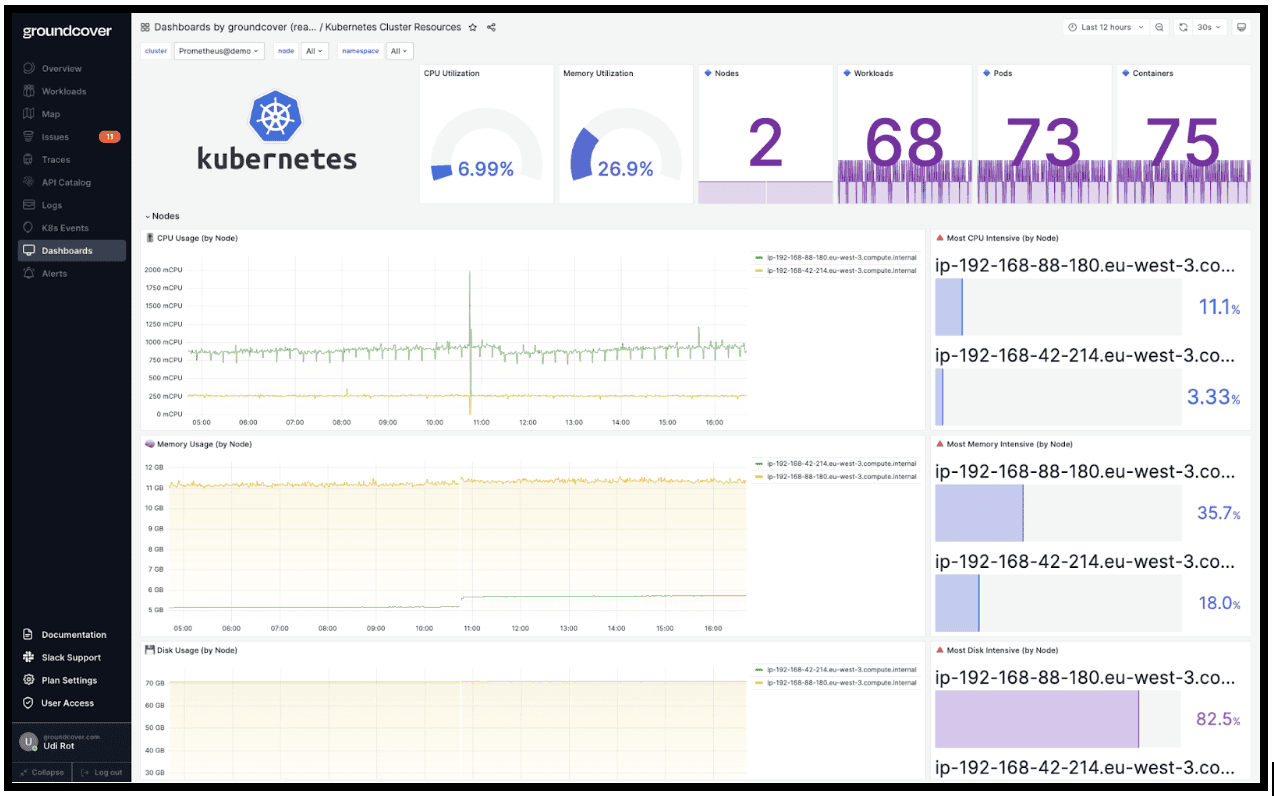
Last but not least, groundcover's eBPF-based sensor streams telemetry straight from the kernel, so observing your Elasticsearch snapshot operations adds negligible CPU and memory overhead which independent testing shows eBPF-based collection increases CPU load by under 10% versus baseline. You get deep visibility into snapshot health without the resource tax of traditional agent-based monitoring.
Getting the most from Elasticsearch snapshots
As the most efficient way to back up Elasticsearch data, Elasticsearch snapshots are a powerful feature that you’ll typically want to use regularly if you manage an Elasticsearch cluster. Just be sure you have the necessary monitoring and observability capabilities in place to ensure that snapshots are actually doing what they’re supposed to.














.svg)